Dealing with an unreliable internet connection can feel like a game of digital whack-a-mole. One moment, your video conference is crystal clear; the next, you're a pixelated robot. Whether you're a frustrated home user trying to stream a movie or an IT professional battling an office-wide outage, Network and Connectivity Issues are a universal headache. They stall productivity, disrupt communication, and often leave us feeling helpless. But they don't have to.
This guide isn't just a list of problems; it’s your tactical playbook for understanding, diagnosing, and resolving those maddening connectivity glitches, big or small. We’ll arm you with the knowledge and tools to bring stability back to your digital life.
At a Glance: Your Quick Fix Guide to Connectivity Issues
- Start Simple: Always check cables, reboot devices, and verify Wi-Fi connections first.
- Update Everything: Old firmware and drivers are silent network killers. Keep them current.
- Scan for Trouble: Malware and resource-hungry apps can mimic network problems.
- Check Your Router: It's often the heart of the problem – placement, settings, and age matter.
- Understand Your Tools: Ping, traceroute, and
ipconfigare your first line of defense. - Proactive is Best: Monitoring and regular maintenance prevent future headaches.
- When in Doubt: Don't hesitate to consult your ISP or a networking professional.
Unpacking the Digital Dilemma: What are Network Issues?
At its core, a network issue is anything that gums up the works, making your internet slow, unreliable, or completely inaccessible. It could be a snapped cable, a crowded Wi-Fi channel, a software glitch, or even something more sinister like a cyber-attack. These problems don't just cause minor inconvenience; they can lead to significant downtime, lost data, and major frustration for individuals and businesses alike.
Before diving into solutions, let's explore the most common culprits behind network woes and how to tackle them head-on.
Common Network Glitches and How to Beat Them
From sluggish downloads to complete disconnection, these are the typical troublemakers you'll encounter and the steps to get things back on track.
1. The Agony of Slow Network Performance
Problem: Your internet feels like dial-up in an age of fiber optics. This usually points to an overloaded network from bandwidth-heavy applications (think 4K streaming or massive file transfers), a throng of too many devices, outdated network hardware, background apps silently hogging resources, or even electronic interference. Sometimes, it's simply your router being too far away or your ISP throttling your connection. Malware can also be a sneaky culprit.
Solution: First, pinpoint the bottleneck. Use network monitoring tools (more on these later) to see who or what is devouring bandwidth. Prioritize critical applications using Quality of Service (QoS) settings on your router. Regularly update your router's firmware for optimal performance and security. Ensure your router is centrally located and, if possible, switch to the less congested 5GHz frequency band for devices that support it. A full scan for viruses and malware is always a good idea. If your gear is ancient, an upgrade might be necessary. Finally, don't shy away from contacting your ISP – they might be able to diagnose issues on their end or adjust your service.
2. The Dreaded Weak Wireless Signals (Wi-Fi Interference)
Problem: You're in a Wi-Fi "dead zone," or your signal strength is abysmal, leading to slow internet, dropped connections, and devices refusing to link up. This often happens because of physical obstructions (walls, furniture), interference from other electronics (microwaves, cordless phones, Bluetooth devices), network congestion, or simply being too far from your router. Outdated hardware or software can also play a role. If you're experiencing general device connectivity issues, including trouble sharing your location, a weak Wi-Fi signal is often the first place to look.
Solution: Grab a Wi-Fi analyzer app (many free options exist for smartphones) to map out weak spots and identify sources of interference. Try repositioning your router or access points, ideally higher up and away from physical barriers. Adding Wi-Fi range extenders or a mesh system can drastically improve coverage. A simple router restart can often clear up minor glitches. On your device, try "forgetting" the Wi-Fi network and reconnecting. If your router supports it, change your Wi-Fi channel (channels 1, 6, and 11 are generally least congested on 2.4GHz). And yes, updating device firmware and drivers remains crucial.
3. Tangled Mess: Physical Connectivity Issues
Problem: Sometimes, the simplest explanation is the right one. Loose, damaged, or improperly routed Ethernet or fiber cables can cause intermittent connectivity or complete network failure. A sharp bend, a misplaced foot, or even an HVAC system rubbing against a cable can cause damage.
Solution: Make a habit of visually inspecting all your network cables. Gently ensure they're securely plugged into their ports. Implement proper cable management – tidying up cables doesn't just look better, it prevents damage. Any cable that looks frayed, bent, or otherwise compromised should be promptly replaced. Don't skimp on cable quality; cheap cables can be a source of frustration.
4. The Overworked Device: High CPU Usage
Problem: Your network feels slow, but the real issue might be your device itself. High CPU, memory, or disk usage on your computer can bottleneck your network connection. Resource-heavy applications, sneaky malware, memory leaks, or simply too many background processes can make your device sluggish, which in turn makes your network seem slow.
Solution: Open Task Manager (Windows) or Activity Monitor (Mac) to identify and close any resource-intensive processes you don't immediately need. Keep your antivirus software updated and run regular scans. Periodically restarting your computer can clear out temporary files and processes. Ensure all your drivers and software are up to date. Disable unnecessary startup applications to free up resources when your system boots.
5. Laggy Lookups: Slowing DNS Resolution
Problem: You type a website address, and there's a noticeable delay before anything starts to load. This "slowing DNS resolution" means your device is taking too long to translate human-readable domain names (like google.com) into computer-readable IP addresses. Causes include slow or overloaded DNS servers, improperly configured settings, or local DNS caches that haven't been updated.
Solution: One of the quickest fixes is to switch to faster, more reliable public DNS servers. Popular choices include Google DNS (8.8.8.8 and 8.8.4.4) or Cloudflare (1.1.1.1). You can configure these directly on your computer or, for a network-wide change, in your router's settings. Regularly flush your DNS cache: ipconfig /flushdns on Windows or sudo dscacheutil -flushcache; sudo killall -HUP mDNSResponder on Mac. Update or reinstall your network drivers and consider a router restart. Also, double-check your firewall settings to ensure they aren't blocking legitimate DNS traffic.
6. Identity Crisis: Static or Duplicate IP Conflicts
Problem: Imagine two houses trying to use the exact same street address. That's essentially what happens with duplicate IP conflicts. Two or more devices being assigned the same IP address causes connection instability, often manifesting as intermittent connectivity or one device constantly knocking another offline. This usually occurs when static IPs are manually assigned within a range managed by DHCP, leading to an overlap.
Solution: The best practice here is proper IP planning. If devices need static IPs (like servers or network printers), use DHCP reservations on your router to assign them a consistent IP, or assign them static IPs outside your router's DHCP range. For immediate relief, release and renew your IP address: ipconfig /release followed by ipconfig /renew on Windows. On a Mac, renew the DHCP lease in your network settings. Ensure most devices are set to "obtain an IP address automatically" from your router's DHCP server.
7. Running on Fumes: IP Address Exhaustion
Problem: With the explosion of connected devices (IoT, smartphones, smart home gadgets), we're rapidly running out of available IPv4 addresses. While Network Address Translation (NAT) helps by allowing many local devices to share a single public IP, it's a temporary workaround.
Solution: For your home or small business network, continue to use private IP ranges with NAT, as your router handles this efficiently. For long-term scalability and future-proofing, keep an eye on and consider transitioning to IPv6, which offers a virtually limitless supply of addresses. Many modern devices and ISPs already support IPv6.
8. Remote Woes: VLAN and VPN Challenges
Problem: Virtual Private Networks (VPNs) and Virtual Local Area Networks (VLANs) are powerful tools for security and network segmentation, but they can introduce connectivity issues. VPN users might experience no internet access or failed connections due to incorrect login credentials, overly strict firewall restrictions, or incompatible switch configurations. VLAN issues often stem from misconfigurations that unintentionally isolate devices.
Solution: For VPN issues, always double-check your login credentials and ensure your account is active. Verify your firewall settings – VPNs often require specific ports to be open (e.g., UDP 1194 for OpenVPN, TCP 443 for SSTP). A system restart can sometimes resolve temporary VPN client glitches. If the issue persists, try a wired connection to rule out Wi-Fi problems, and don't hesitate to contact your VPN provider's support. For VLAN problems, meticulous configuration review is key. Ensure devices are assigned to the correct VLANs and that routing between VLANs is properly set up if needed.
9. Network Chaos: Loops and Broadcast Storms
Problem: Imagine sending a letter, but it keeps getting delivered back and forth between two post offices endlessly. That's a network loop. It happens when multiple active paths exist between switches without proper loop prevention. This can quickly escalate into a "broadcast storm," where the network is overwhelmed with duplicate traffic, leading to massive slowdowns or complete outages.
Solution: If you're using managed switches, ensure Spanning Tree Protocol (STP) or Rapid STP (RSTP) is enabled. These protocols automatically detect and block redundant paths to prevent loops. Avoid daisy-chaining unmanaged switches, as they lack loop prevention capabilities. Regular network audits can help you spot and resolve potential loop-related issues before they cause a crisis.
10. Digital Dust Bunnies: Outdated Firmware or Drivers
Problem: Just like an old operating system can be buggy, outdated firmware on your router, switches, and even the network interface card (NIC) in your computer can lead to compatibility issues, security vulnerabilities, and degraded performance.
Solution: Make it a routine to check for and install firmware and driver updates. Visit the manufacturer’s website for your router, switches, and network cards. Many modern devices offer automated update features; enable them if available. For critical infrastructure, maintaining a version control log helps track changes and roll back if necessary.
11. The Gatekeeper Gone Rogue: Misconfigured Firewalls or Security Policies
Problem: Firewalls are your network's bouncers, keeping unwanted traffic out. But if they're too strict or improperly configured, they can block legitimate traffic, causing connectivity issues for websites, applications, or even your internal network. This is especially common after system updates or changes to network architecture.
Solution: Regularly review your firewall and security configurations. If you're experiencing unexpected blocks, use logging and monitoring tools within your firewall to identify what traffic is being blocked and adjust rules accordingly. Always test any changes in a controlled environment before deploying them network-wide to avoid unintended consequences.
12. The Missing IP Address: DHCP Server Failures
Problem: Your Dynamic Host Configuration Protocol (DHCP) server is responsible for handing out IP addresses to all devices on your network. If it fails or becomes unreachable, new devices won't get an IP, and existing devices might lose their connection when their lease expires. This can be caused by a server crash, misconfiguration, or network segmentation issues preventing the server from being reached.
Solution: For home users, your router usually acts as your DHCP server. Ensure your router's DHCP service is running and properly configured (usually enabled by default). For larger networks, implement DHCP failover or redundancy to maintain availability. Monitor DHCP logs proactively to catch and resolve issues before they impact many users.
13. Digital Intruders: Network Security Issues
Problem: Not all network issues are accidental. Cyber-attacks like phishing, malware, DDoS (Distributed Denial of Service), brute force attacks, or Man-in-the-Middle attacks can compromise your network's confidentiality, integrity, or data. This leads to unauthorized access, data theft, loss, or corruption, and can manifest as network slowdowns or unusual activity.
Solution: A multi-layered defense is crucial. Protect all devices with up-to-date antivirus software, robust firewalls, and, where appropriate, VPNs for secure remote access. Regularly update your operating systems, application drivers, and apply security patches as soon as they're released. Strong, unique passwords and multi-factor authentication are non-negotiable.
14. The Stubborn Printer: Inability to Connect
Problem: That network printer, despite being on and connected, stubbornly appears "offline." Common causes include an incorrect IP address configuration, your firewall blocking it, outdated printer drivers, invalid network credentials, power-saving modes, print spooler service errors, or even network security settings.
Solution: Start with the basics: Is the printer powered on and ready? Reboot both your computer and the printer. Use your operating system's built-in printer troubleshooter. Crucially, install the newest printer drivers from the manufacturer's website. Verify the printer's IP address in its settings matches what your computer expects. Temporarily disabling your firewall (for testing purposes only!) can help rule it out. Clear and restart the print spooler service (Windows: Services > Print Spooler). For stability, consider manually setting a static IP for your printer within your router's DHCP reservation settings.
15. The Bandwidth Hog: High Bandwidth Usage
Problem: Your network feels sluggish, and downloads crawl. This often comes down to excessive bandwidth consumption by one or more users or applications. Think large file downloads, constant video streaming on multiple devices, or active file-sharing clients. This creates congestion, leaving insufficient bandwidth for other network activities.
Solution: Network Performance Monitors (NPMs) are invaluable here to track usage and identify the culprits. Scan for malware, as some can secretly use your bandwidth. Implement Quality of Service (QoS) on your router to prioritize critical traffic (like VoIP or video conferencing) over less urgent activities. Identify and limit bandwidth-intensive applications or users if possible, or schedule large downloads for off-peak hours.
16. The Dropped Data: Packet Loss Issues
Problem: Data packets are the little envelopes of information traveling across your network. When they fail to reach their destination, it's called packet loss. This causes delays in applications, stuttering audio/video, corrupt file downloads, and a generally unreliable connection. Reasons include network congestion, faulty cables, outdated drivers, an overheating router, wireless interference, or even hardware failures.
Solution: Use network testing tools to measure packet loss (ideally, you want less than 1%). Replace any damaged Ethernet cables. Ensure your network adapter drivers are up to date. A simple weekly router reboot can prevent overheating and clear temporary glitches. Test all loose connections. Minimize wireless interference (see issue #2). For heavy-duty use, consider upgrading to business-class hardware. Finally, monitoring network traffic patterns can help you spot congestion before it leads to significant packet loss.
The Usual Suspects: Why Networks Go Down
While the specific issues vary, several common threads run through most network failures:
- Physical Damage: Damaged Ethernet or fiber cables are surprisingly frequent culprits.
- Overload: Devices or networks overwhelmed with traffic simply can't cope.
- Misconfiguration: Faulty DHCP setups, overly strict firewall rules, incorrect VLAN settings, or botched IP assignments.
- Interference: Other devices or neighboring networks can jam your Wi-Fi signal.
- Outdated Tech: Old software, firmware, or drivers on network devices.
- Hardware Faults: Sometimes, a router, switch, or NIC simply fails.
- Software Bugs: Errors in operating systems or applications can cause network issues.
- Physical Obstructions: Walls, metal, or appliances blocking wireless signals.
- Security Settings: VPNs and firewalls, when misconfigured, can inadvertently block legitimate traffic.
Your Troubleshooting Toolkit: A Step-by-Step Approach
When a network issue strikes, don't panic. Follow this systematic approach to diagnose and resolve problems efficiently.
1. Identify the Real Problem
Don't jump to conclusions based on the first symptom. Gather information:
- Ask Users: What changed? When did it start? What exactly isn't working?
- Check Logs: Router logs, firewall logs, server logs can offer clues.
- Monitor Systems: Look at traffic graphs, device status.
- Replicate: Can you make the problem happen consistently? This helps narrow the scope.
2. Establish a Theory of the Probable Issue
Based on your observations, form a hypothesis. Start with the simplest possibilities first (e.g., "Is it plugged in?").
- Top-Down/Bottom-Up: Start from the application layer down to the physical layer (OSI model) or vice-versa.
- Consult Resources: Look up similar issues in documentation, online forums, or knowledge bases.
- Document: Take notes on what you observe and your theories.
3. Test the Theory in Action
Use diagnostic tools to verify your theory without making immediate changes.
- Ping: Test basic connectivity to other devices or websites.
- Traceroute: See the path your data takes and where it might be failing.
- Wireshark: For advanced users, inspect actual data packets.
- If your theory proves wrong, go back to step one. Don't get stuck on a single idea. For hardware issues, you might need component swaps or expert analysis.
4. Establish a Definite Plan of Action
Once you're confident in your diagnosis, outline your solution.
- Consider Impact: Will this change affect other users or systems?
- Dependencies: Are there other systems or teams you need to coordinate with?
- Backup & Rollback: Always back up configurations before making major changes and have a plan to revert if things go wrong.
- Test Environment: If possible, test your remedy in a controlled, staging environment before applying it to your main network.
5. Verify System Functionality and Apply Preventive Measures
The problem isn't fixed until you've confirmed it.
- Test Thoroughly: Don't just assume it's fixed. Test all affected functions.
- Involve Users: Get confirmation from the end-users who reported the issue.
- Prevent Recurrence: Implement similar fixes on other potentially impacted systems. What can you do to prevent this from happening again? (e.g., schedule updates, modify policies, set up new monitoring alerts).
- Document Everything: Record the problem, your attempts, the successful solution, and any preventive steps. This builds a valuable knowledge base for future incidents.
Your Diagnostic Toolkit: Essential Commands and Software
Knowing which tools to reach for is half the battle. Here are some indispensable commands and applications:
Nslookup(Windows/Linux/Mac): Checks DNS resolution; tells you what IP address a domain name resolves to. Useful for diagnosing DNS issues.Ping(Windows/Linux/Mac): The fundamental connectivity test. Sends small packets to a destination and measures response time, indicating if a device is reachable and how fast.Traceroute/Tracert(Linux/Mac/Windows): Maps the path your data packets take to reach a destination. Helps pinpoint where along the route a connection might be failing or experiencing delays.Ipconfig(Windows) /Ifconfig(Linux/Mac): Displays your device's current IP address, subnet mask, default gateway, and DNS servers. Essential for local network configuration checks.- Speed Test (Web-based tools): Measures your internet upload, download, and latency to your ISP.
- IP Scanner (Software): Scans your local network to discover all connected devices and their IP addresses.
- Whois (Web-based tools): Look up domain ownership and registration information.
Netstat(Windows/Linux/Mac): Shows active network connections, listening ports, and routing tables on your device. Useful for identifying suspicious connections.- Wireshark (Software): A powerful network protocol analyzer. It captures and allows you to inspect individual data packets, providing deep insights into network traffic. (Advanced tool).
- Telnet / SSH (Commands/Clients): Used for remote command-line access to network devices like routers and switches. SSH (Secure Shell) is preferred for its encryption.
- Subnet & IP Calculator (Web-based tools/Software): Helps design and validate IP subnetting plans, especially in larger networks.
- PuTTY / Tera Term (Software): Free terminal clients for Windows to establish SSH, Telnet, or serial connections to network devices.
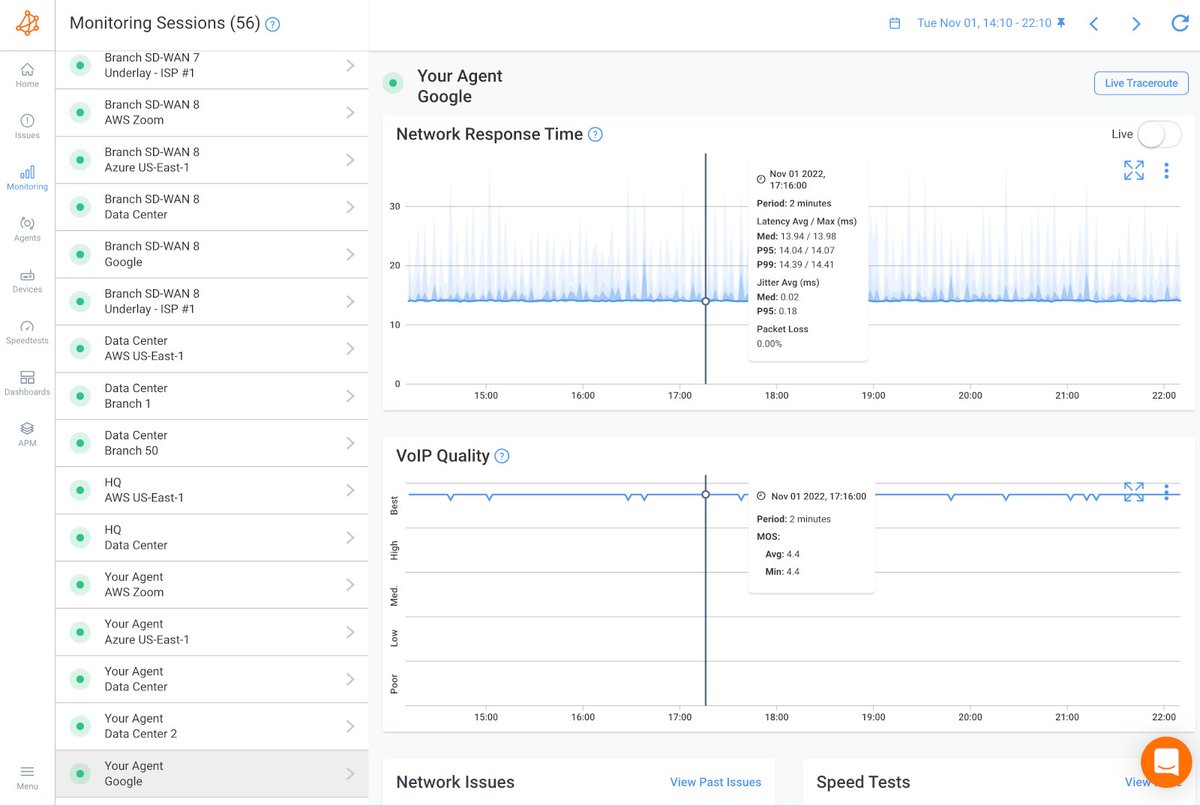
- Network Monitoring Tools (e.g., Nagios, PRTG): Comprehensive software suites that provide real-time insights into network traffic patterns, device health, bandwidth usage, and fault detection across your entire network.
Proactive Defense: Avoiding Network Issues in the Future
The best fix is prevention. Here’s how to minimize future network headaches:
- Stay Updated: Make it a priority to regularly check for and install firmware, driver, and software updates for all your network devices – routers, switches, firewalls, and endpoint devices.
- Monitor Your Network: Implement network monitoring tools. They provide invaluable real-time insights into traffic patterns, device health, and fault detection, often alerting you to problems before they become critical.
- Backup Configurations: Before making any major changes to network devices, back up their current configurations. This gives you a lifeline if something goes wrong.
- Prioritize Traffic with QoS: Configure Quality of Service (QoS) settings on your router or managed switches. This allows you to prioritize bandwidth for essential applications like VoIP, video conferencing, or critical cloud services.
- Smart Network Design: Properly configure VLANs to segment your network and prevent unintentional device isolation. Enable Spanning Tree Protocol (STP) on managed switches to prevent network loops and broadcast storms.
- Review Logs Regularly: Your router, switches, and firewalls generate logs. Get into the habit of reviewing them periodically. They are a treasure trove of diagnostic information and can highlight recurring issues or potential security threats.
- Invest in Quality Infrastructure: Don't cut corners on network hardware. Investing in reliable, business-grade equipment (even for a robust home network) and maintaining it regularly will pay dividends in stability and performance.
When Things Get Really Stubborn: Advanced Solutions
For persistent or complex network issues that defy basic troubleshooting, it might be time to:
- Consult a Networking Professional: Sometimes, an experienced eye is needed to diagnose deep-seated problems, especially in larger or more intricate network environments.
- Upgrade to Enterprise-Grade Hardware: Consumer-grade routers and switches might not be robust enough for heavy usage or larger spaces. Enterprise-grade equipment offers better performance, reliability, and advanced features.
- Implement Network Segmentation: For businesses, segmenting your network with VLANs and separate subnets can isolate issues, improve security, and manage traffic more efficiently.
- Utilize Load Balancers: In environments with high traffic to servers, load balancers distribute network traffic across multiple servers, preventing any single server from becoming a bottleneck and improving overall availability and performance.
Navigating the Network Maze with Confidence
From a simple weak Wi-Fi signal to complex IP conflicts, Network and Connectivity Issues are an inevitable part of our connected world. But they don't have to be a source of constant frustration. By understanding common problems, adopting a systematic troubleshooting approach, leveraging the right diagnostic tools, and embracing proactive prevention strategies, you can transform from a reactive problem-solver to a confident network manager.
Equipped with this guide, you’re ready to tackle those digital headaches, ensuring your network remains stable, efficient, and secure. The goal isn't just to fix what's broken, but to build a more resilient and reliable connection for everything you do online.